



Mastering UDT Desktop: A Step-by-Step Guide to Local Device Integration
Automated Testing 2025-04-08 17:45 541
UDT Desktop Pro can help you connect local devices in batches to UDT smoothly, start debugging and conduct auto-testing.
We provide a device connection tool called UDT Desktop pro which can help you connect local devices in batches to UDT smoothly, start Debugging and conduct Auto-Testing.
STEP 1: Download UDT Desktop
Contact your sales to obtain the latest version of UDT Desktop pro.
- MAC
Please confirm in advance that you have selected the "Mac App Store and identified developers" or "Anywhere" in System Preferences -> Security & Privacy. Otherwise, the tool can't be started.

Drag the tool to the Applications folder to open it later.

- Windows
After decompression, directly double-click udt-desktop-pro.exe.
STEP2: Login
(1) Select OAuth Login method
(2) Enter the site: udt
(3) Click One- click Login and finish the login process.


(4) Select the Work directory (set up on first use):
This is where the desktop tool stores downloaded basic components, cache, logs, etc. Note:
- No spaces in the selected directory.
- No two or more "udt_desktop_work" directories within the work directory.

STEP 3: Connect and configure devices
- Android
To connect and register an Android device, configure the device in advance to ensure smooth connection later.
Note: Enable the developer mode and USB debugging before device connection.
- iOS
To connect and register an iOS device, configure the device in advance to ensure smooth connection later. iOS device version support: Below iOS 17.0 and iOS 17.4 and above.
Note: Install iTunes in advance for connecting an iOS device via a Windows OS.
1: Version Upgrade
If your iOS version is between 17.0 and 17.3, please upgrade it to version 17.4 or above.
2: Device trust
(1) Remove the screen lock of the device to facilitate subsequent steps.
(2) If the "Trust" pop-up window appears after you connecting the device via USB, click Allow.
Note: If the device is installed with iOS v16.0 or higher, you need to manually enable the developer mode in Settings -> Security & Privacy -> Developer Mode (restart the device as prompted after enabling).

If the toggle does not appear, unplug and plug the device again and connect it to Desktop. Desktop will automatically restart it.
3: Install UDT components
If the device is installed with iOS v15.0 or later, select Settings -> General -> VPN & Device Management -> Enterprise Signature APP -> scrcpy, and click Trust.

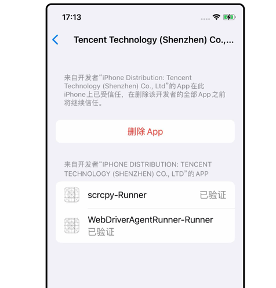
After the component runs properly, the phone will prompt "Automation Running", as follows:

Note: If you don't want to access Desktop later, click "scrcpy" and "WebDriverAge.." on the desktop, go to the Recent APP tasks page, and manuallyshutdown it. After that, the "Automation Running" prompt will disappear.

Integrating local devices with UDT Desktop Pro streamlines debugging and auto-testing workflows, ensuring efficiency and precision. By following the steps outlined—downloading the tool, configuring login credentials, and preparing Android/iOS devices with version checks, trust settings, and component installations—you can seamlessly connect devices in batches and leverage UDT's full potential.
Ready to elevate your testing process? Download UDT Desktop Pro, follow this guide, and unlock smooth, scalable device management. Happy debugging!
Start Your Free Trial on UDT
1. Register to get your UDT account
2. Create a new project in your account
3. Contact us to get free real devices in your project
Also, we are glad to have a meeting with you: Schedule a Meeting with Us
Learn more about UDT platform: WeTest-All Test in WeTest
UDT Demo: WeTest-All Test in WeTest
0
Latest Posts
1GB/T 48140–2026: China's New Automotive Software Quality Standard Explained China's GB/T 48140–2026 redefines automotive software quality management across the full lifecycle. Explore its impact on OTA updates, AI testing, and continuous validation.
2Tencent WeTest at Devcom: Two New AI Testing Solutions, From Fixed Scripts to Autonomous Agents Discover how Tencent WeTest leverages Acorn AI and a reusable visual Agent architecture to transform game QA into an autonomous, closed-loop diagnostic system.
3AI Coding Agents Enter the Testing Loop: From Code Generation to Automated Debugging AI coding agents are evolving from code generators to full software engineering agents that test, debug, and fix code. Learn how runtime context enables automated root cause analysis and why testing becomes more critical than ever.
4Test Management: Practical Lessons for Engineering Team Leads Learn proven test management strategies for technical leaders, including team efficiency optimization, project planning, knowledge accumulation, QCC improvement, and practical team building methods.
5The Path to Test Development: 7 Core Competencies for Modern QA Engineers What makes a senior QA engineer stand out? Explore the 7 core QA competencies including quality-driven execution, team influence, risk governance, process improvement, and technical fundamentals for modern software testing.
Tools
UDT: Auto-Testing Platform
Customized Auto-Testing Platform
Real Device Cloud
PerfDog
CrashSight
PerfSight
Featured Services
APP Compatibility Testing
APP Functional Testing
Mobile Game Hardening
Penetration Testing
Crowd Testing
Localization Quality Assurance
Featured Solutions
Mobile Game Solutions
PC Game Solutions
Overseas Local User Testing Solutions
Mini Program Security Testing Solutions
ISO 9001:2015
Quality Management System Certification
ISO/IEC 20000-1:2018
IT Service Management System Certification
ISO/IEC 27001:2013
ISO/IEC 27001:2013
Copyright © 1998 - 2025 Top Range Mobile Limited.(WeTest.net) All Rights Reserved
